How to Report an Initial Equipping
If you posted your Initial Equipping on the THI Event Page, it will automatically appear under "Unreported Events" in your THI Account. Locate the event in your account and then begin following this tutorial at Step #2. If you did not post it on the THI Event Page, begin at Step #1.
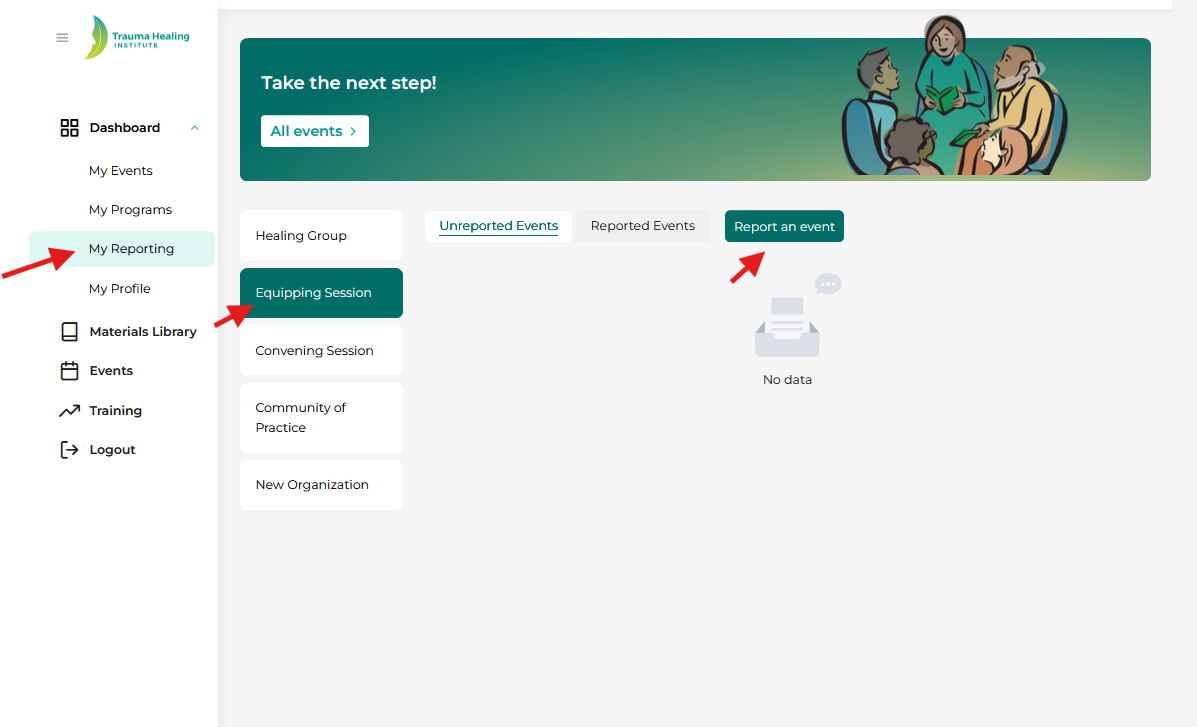
Step 1: Click on “My Reporting”, then click “Equipping Session”, then click “Report an event”.
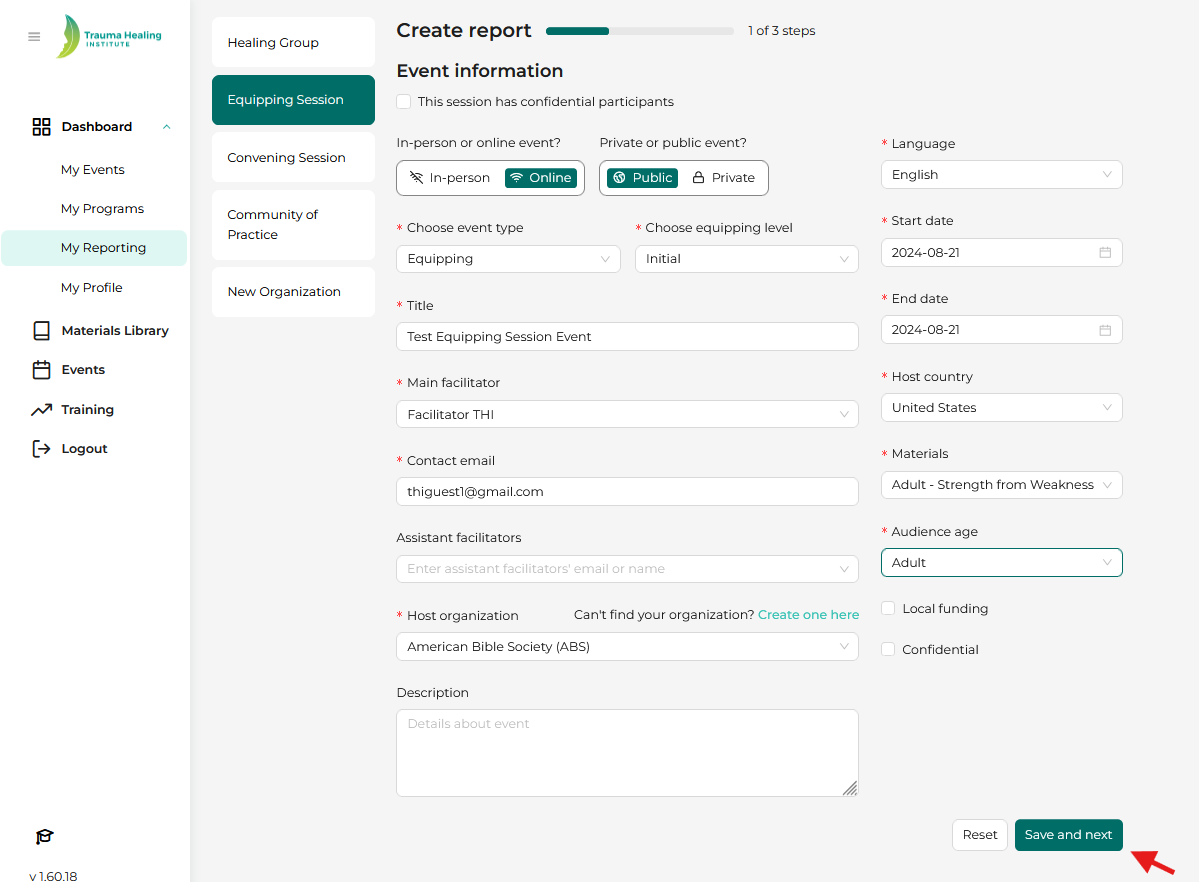
Step 2: Fill out the event information step 1 of 3 and click “Save and next”.
Step 3: Add the participants’ email addresses if they did not register on the events page. If they register on the events page, the participants should come up automatically.
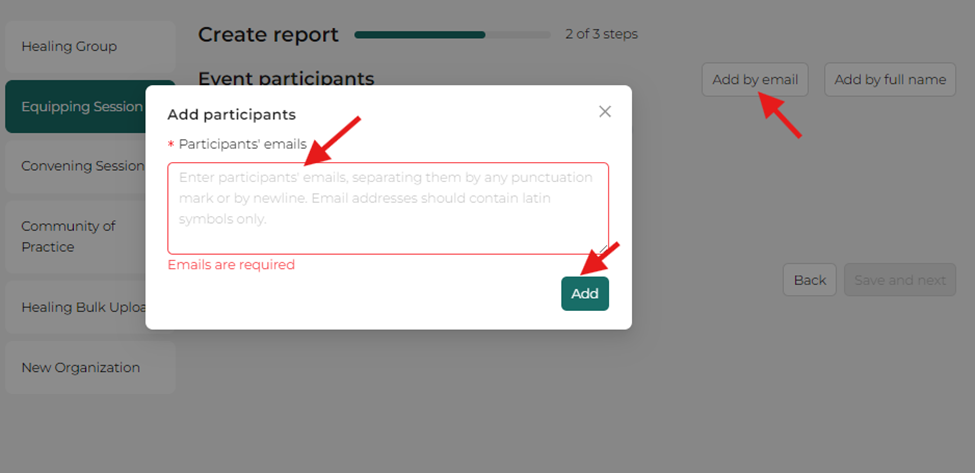
If your participants do not have email addresses, here's how to add them to the report form:
- Please click the “Add by full name” option on the page.
- Fill out the participants by first and last name. Be sure to click the “+” sign when adding more than one participant.

3. Click "Add" and a new page will pop up with newly generated email addresses.

4. Click "Save and next" to move onto the next steps.
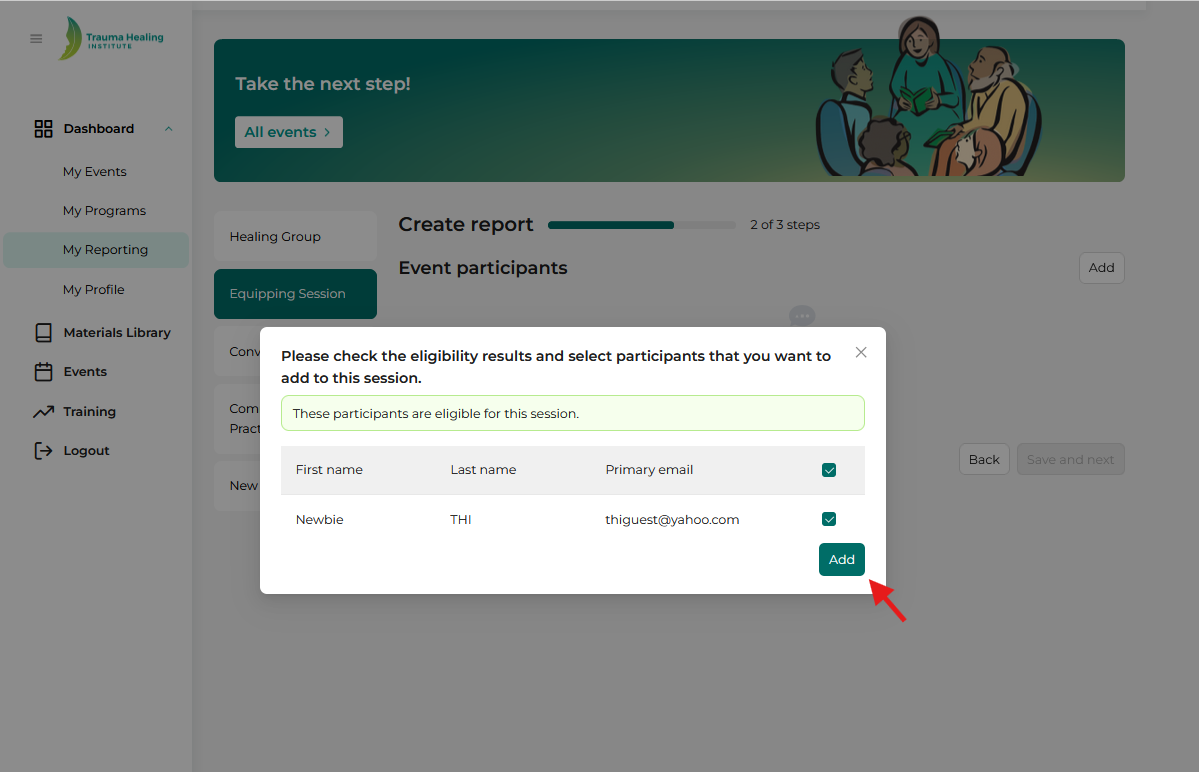
Step 4: Confirm the participant’s eligibility to attend this event by clicking the box next to their email address and then click “add” if eligible.
If you receive a message that says a participant is overqualified to attend an Initial Equipping, you have the option to override this and add them to the report regardless. You may use this override function in the case of having a participant who attended an Initial Equipping many years ago and is looking for a reminder on the THI program model and content.
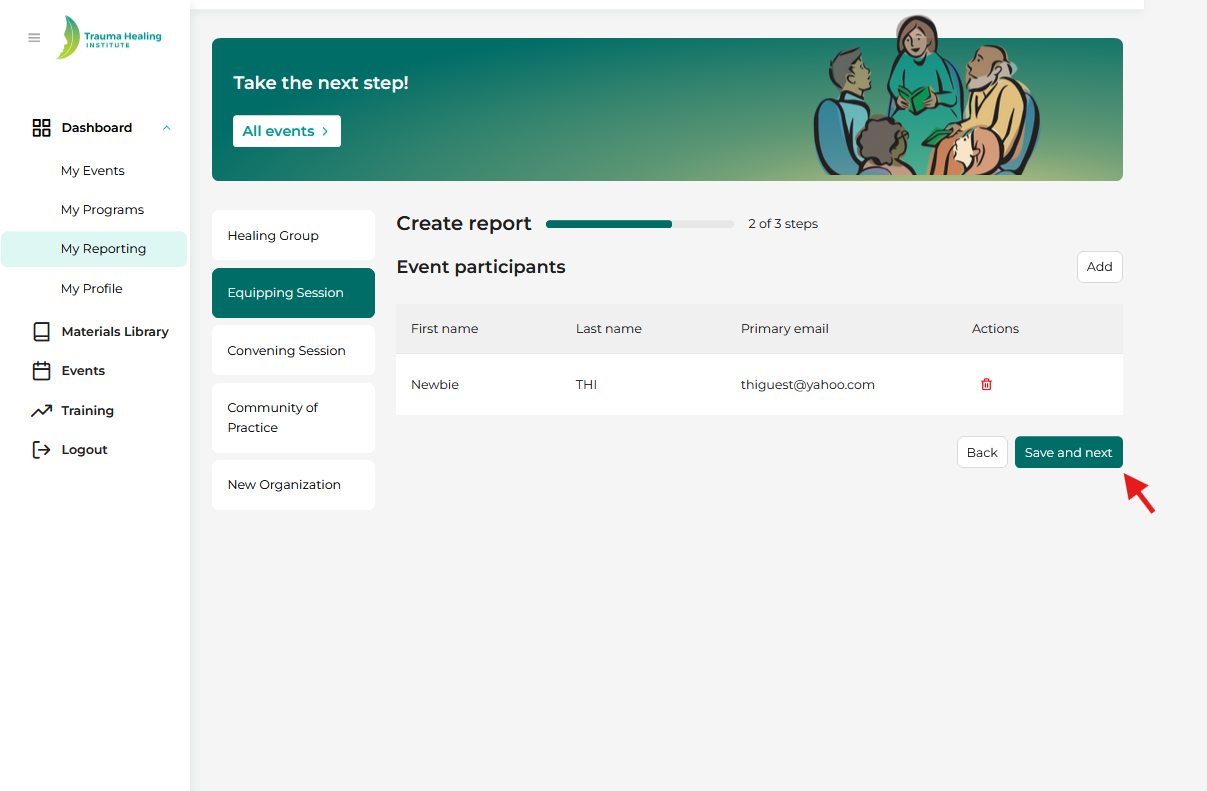
Step 5: Review information and click “Save and next”.
Step 6: Fill out the other information and then click on the “select participant certification and mentor”. Fill out the participation results and click “save”. “Passed” means that this individual successfully completed the Initial Equipping and is certified as an Apprentice Facilitator. “Not Passed” means that this individual is not being certified as an Apprentice Facilitator.
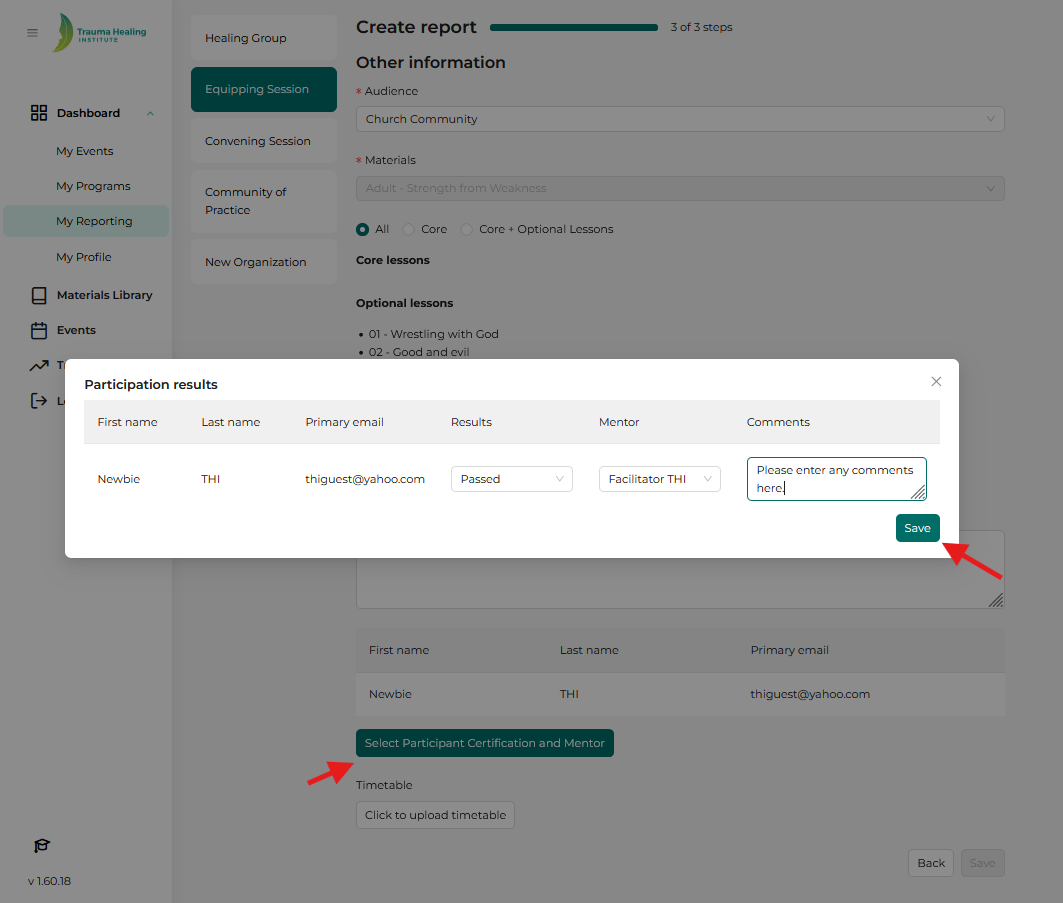
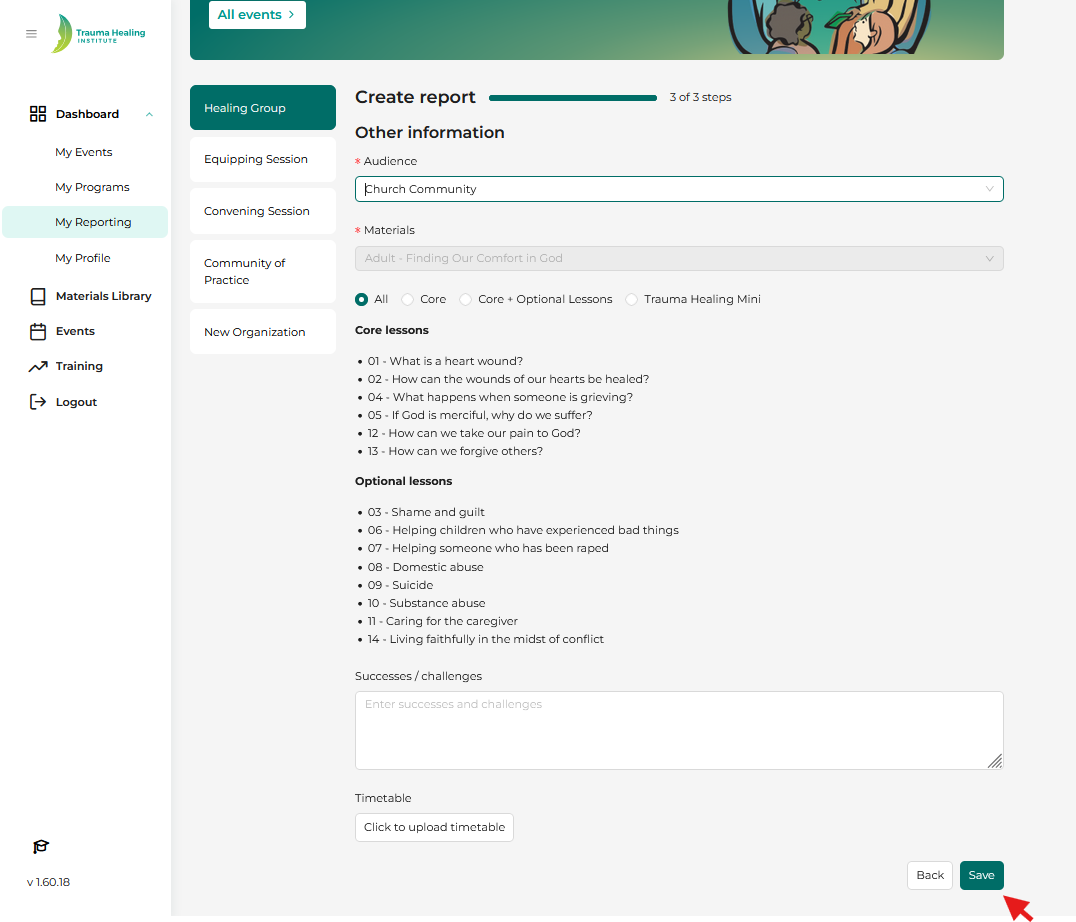
Step 7: Fill out all other necessary information (the items marked with a red asterisk) and click “Save”. Please note: For “Audience”, this provides context for participant types (e.g., "First responders" may refer to those attending their first healing group). Your report will then appear under your “Reported Events”.